
Notifications
Never miss a beat with Clariop's notification system. This guide explains how to configure your notification preferences, choose which events trigger alerts, and manage in-app and email notifications so you stay informed without the noise.
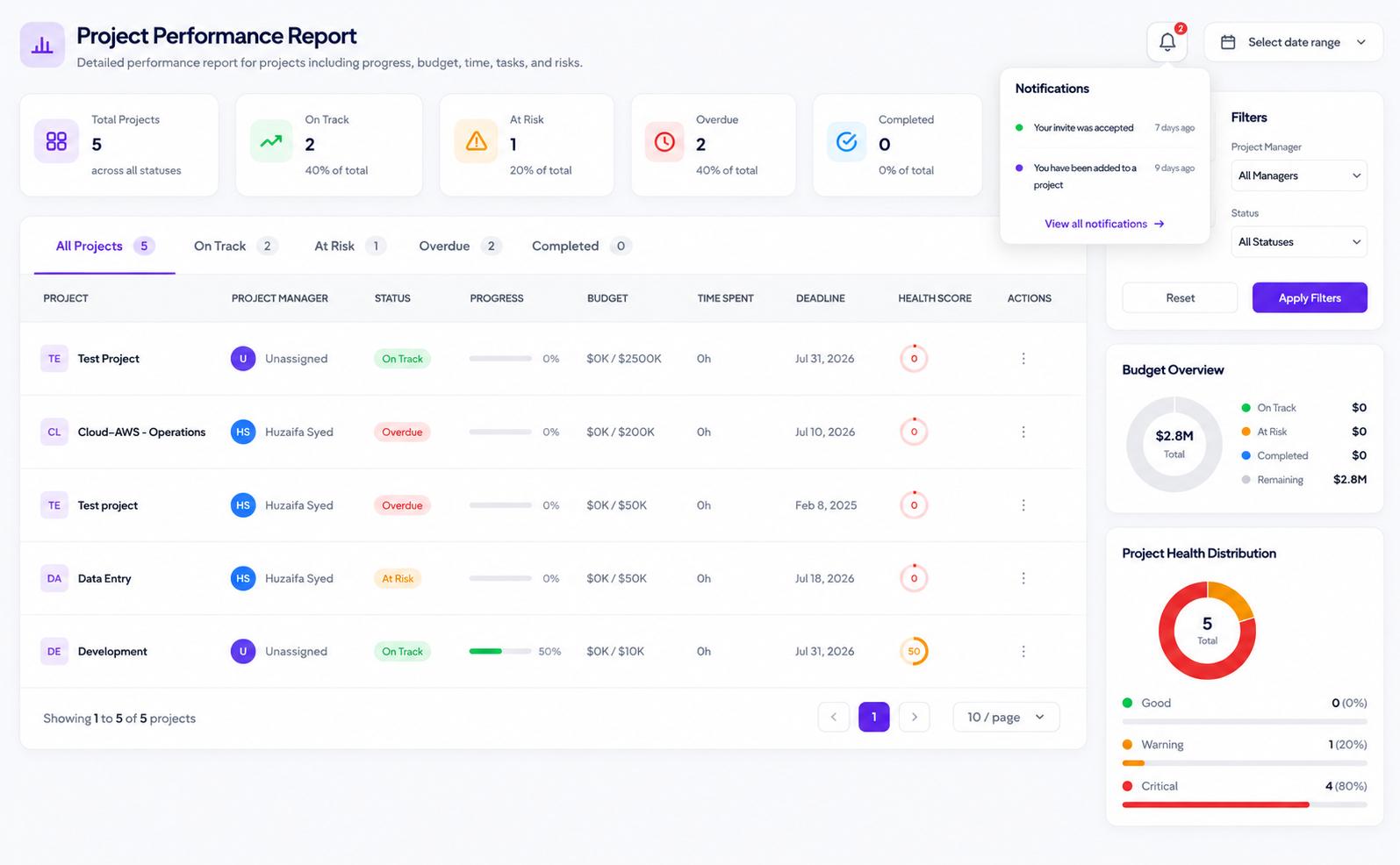
Step 1: Access the Notification Center
Click the bell icon in the top-right navigation bar to open the Notification Center. Here you will find a chronological feed of all activity relevant to you — task assignments, status changes, comments, and upcoming deadline reminders.
Step 2: Configure Notification Preferences
Click "Notification Settings" at the top of the center, then toggle individual event types on or off. For example, you can keep task assignment alerts enabled while disabling comment notifications on tasks you are not assigned to.
Step 3: Manage Email Notifications
In the Email tab of Notification Settings, choose your preferred digest frequency: real-time, hourly, daily, or off. Daily digests are recommended for most users — they surface everything important without cluttering your inbox throughout the day.
Step 4: Filter and Clear Your Feed
Back in the Notification Center, use the filter dropdown to view only "Unread," "Mentions," or "Assigned to me" notifications. Click any notification to mark it as read, or use "Mark all as read" to clear the feed in one action.